Reduce website image weight
Use JPG to WebP or PNG to WebP when the goal is faster web delivery, lighter pages, and smaller image transfers.
A browser-based WebP converter hub for common image workflows: WebP to PNG, WebP to JPG, JPG to WebP, PNG to WebP, PNG to JPG, WebP to PDF, and WebP to SVG.
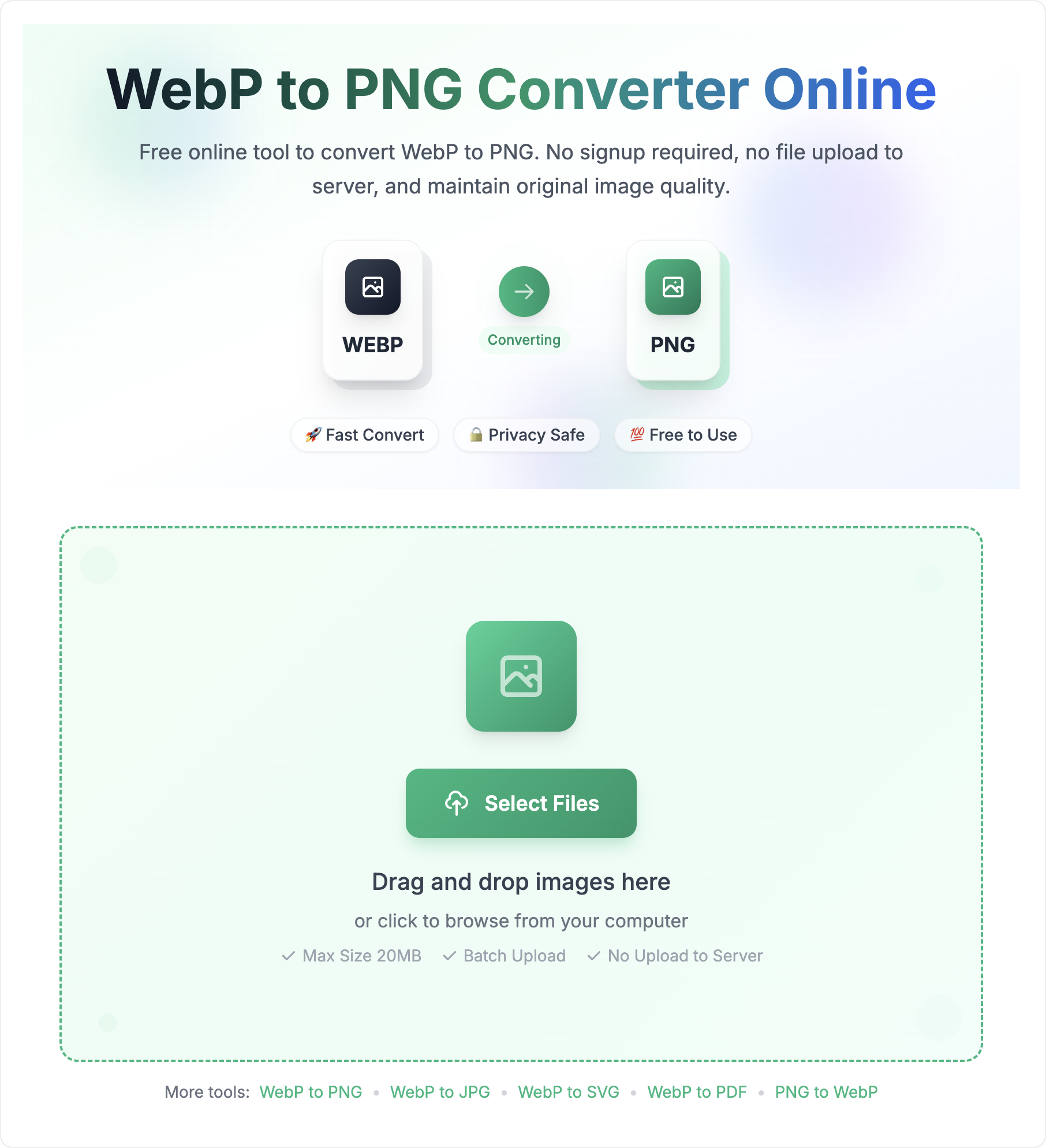
Drag and drop images here
or click to browse from your computer
Start from the image problem you need to solve, then pick the format path that preserves the right tradeoff.
Use JPG to WebP or PNG to WebP when the goal is faster web delivery, lighter pages, and smaller image transfers.
Use WebP to JPG or WebP to PNG when another app, upload form, or recipient does not accept WebP.
Use WebP to PDF when screenshots, receipts, scans, or visual references need to be sent as one portable document.
Use WebP to SVG only when SVG output fits your workflow. Raster-to-SVG conversion does not recreate the original editable design file.
Use these limits to choose whether to run one conversion batch here or open a more specific tool page.
| Primary workflows | WebP to PNG, WebP to JPG, PNG to WebP, JPG to WebP, PNG to JPG, WebP to PDF, and WebP to SVG. |
|---|---|
| Batch limit | Most image workflows support up to 30 files. PDF/SVG workflows may use their own limits shown on the tool page. |
| File size limit | Common image workflows support up to 20MB per file; PDF/SVG-specific tools may use 10MB per file. |
| Processing model | Conversions run in the browser for privacy and fast local feedback. |
| Best use | Use this hub for broad conversion needs, then use a dedicated page when you need format-specific guidance. |
WebPConvert brings the main WebP conversion paths into one page. Convert PNG to WebP, JPG to WebP, WebP to JPG, WebP to PNG, WebP to PDF, and WebP to SVG from the same browser workflow.
Whether you need a png to webpconverter or jpg to webpconverter, WebPConvert provides the best compression algorithms and maintains excellent image quality across all conversions.
WebPConvert leverages Google's WebP format for superior compression. Reduce file sizes by up to 70% while maintaining visual quality with our intelligent webpconverter.
WebP supports both lossy and lossless compression, transparency, and animations. WebPConvert optimizes each conversion type to deliver the best results for web performance and storage efficiency.
Follow these simple steps to convert your images with our webpconverter. WebPConvert makes image conversion quick and efficient for all formats.
A quick guide for matching WebP, PNG, JPG, PDF, and SVG to the job in front of you.
WebP is usually the best target for modern websites because it compresses photographic and transparent images efficiently.
JPG and PDF remain useful when the receiving system cares more about compatibility than image optimization.
Everything you need to know about our webpconverter tool
WebPConvert is a free browser-based image converter for common WebP workflows. It helps convert WebP to PNG or JPG, create WebP from PNG or JPG, and handle related formats such as PDF and SVG when the workflow needs them.
WebPConvert focuses on the main workflows used on this site: WebP to PNG, WebP to JPG, PNG to WebP, JPG to WebP, PNG to JPG, WebP to PDF, and WebP to SVG. The available output options are shown inside the converter.
Yes, WebPConvert supports batch processing. You can upload multiple images and convert them simultaneously. Our webpconverter can process up to 30 files at once with a maximum size of 20MB per file.
WebP often provides smaller file sizes than traditional JPG or PNG for web delivery while keeping strong visual quality. That can improve loading speed and reduce bandwidth on image-heavy pages.
Yes, WebPConvert is completely free. Our webpconverter requires no registration, no subscription, and has no hidden fees. Convert unlimited images with our png to webpconverter and jpg to webpconverter tools.
WebPConvert runs conversion in the browser and keeps practical defaults for the selected format. For critical images, compare the output visually and keep the original source file before replacing production assets.
Start with the page that matches your exact input and output format, such as WebP to JPG for compatibility, PNG to WebP for website optimization, or WebP to PDF for document sharing. The dedicated pages include format-specific limits and tradeoffs.
Use PNG when transparency and crisp graphics matter, and use JPG when a receiving app or document workflow needs maximum compatibility. Use WebP primarily for modern web delivery and file-size reduction.